Prompts & Documents
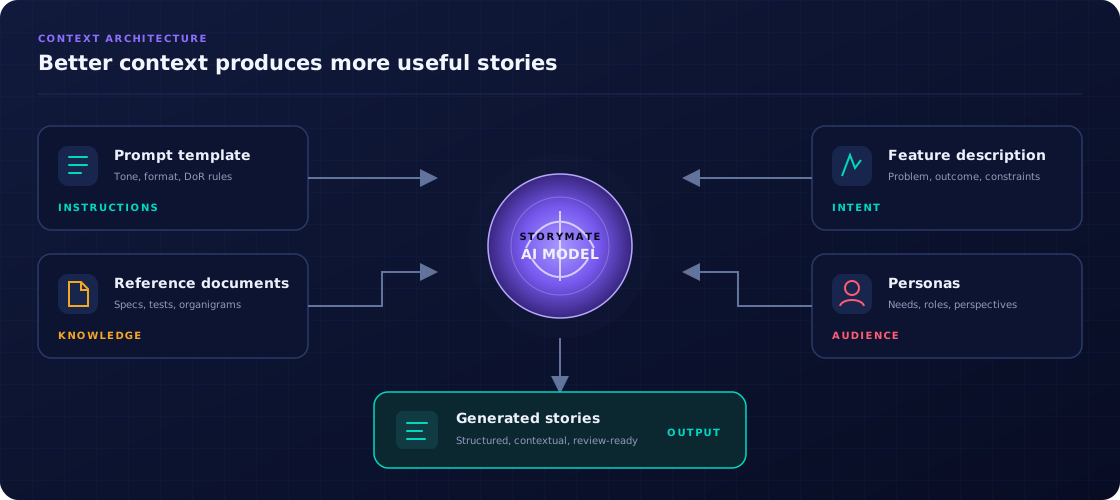
Control what the AI knows and how it writes. Prompt templates define the story format; reference documents inject domain knowledge.
Prompt templates
Navigate to Prompts in the sidebar to manage prompt templates. Each prompt is a text block that is prepended to the AI request before the feature description.
What to put in a prompt
- Story format — e.g. "Always write stories in the format: As a [role], I want [goal] so that [benefit]."
- Domain vocabulary — terms specific to your product domain that the AI should use consistently.
- Granularity rules — e.g. "Each story should be completable in a single sprint. Do not generate epics."
- Acceptance criteria style — e.g. "Write acceptance criteria as Given/When/Then statements."
- Constraints to include — e.g. "Always include a non-functional requirement about performance."
Default prompt
Mark one prompt as Default using the toggle. The default prompt is pre-selected when the slice dialog opens. You can override it per-slice by choosing a different prompt.
Prompt categories
You can assign prompts to a category (free text) to organise them. Categories are displayed as group headers in the prompt selector during slicing.
Reference documents
Navigate to Documents in the sidebar to upload and manage reference documents. Documents are injected into the AI context alongside the feature description and prompt to ground the output in your domain.
Document categories
| Category | Description |
|---|---|
| Specification | Functional or technical specs. The AI uses these to understand system capabilities and constraints. |
| Business Test Case | Existing test cases or acceptance criteria templates. Guides the AI's AC format. |
| Organigram | Org charts or role descriptions. Helps the AI identify the correct user personas from the feature context. |
| Additional | Any other reference material — meeting notes, design docs, glossaries. |
Uploading documents
Click New Document and either paste content directly or provide a URL to a public resource. If you paste a URL, Storymate fetches the content and stores it locally — it won't re-fetch on each slice.
Pulling documents from Confluence
If you have a Confluence connector configured, click Pull from Confluence to import pages from the configured space automatically. Pulled pages appear in the document list with their source URL. You can re-pull at any time to sync updates.
Attaching documents to a feature
Documents can be attached at two levels:
- Organization level — available for all features in all projects (upload via the Documents sidebar item).
- Feature level — attached directly to a specific feature via the feature detail page. These are included automatically when that feature is sliced.
During the slice dialog, you can manually include or exclude any document from the organization library.
How everything flows to the AI