Story Review Workflow
Nothing reaches your backlog without human sign-off. Review each AI-generated story individually — approve it, edit it, or reject it with a reason.
Story statuses
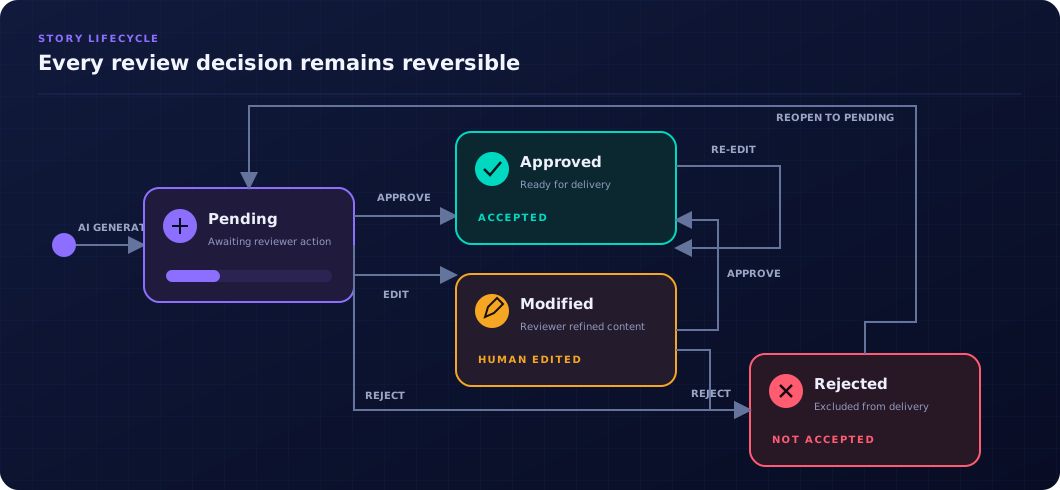
| Status | Meaning |
|---|---|
| PENDING | Newly generated. Awaiting review. Not yet eligible for backlog push. |
| APPROVED | Accepted as-is by a reviewer. Ready to push to the backlog. |
| MODIFIED | Edited by a reviewer. Modified content is used when pushing to the backlog. |
| REJECTED | Discarded. A rejection reason can be provided for context. Not pushed to the backlog. |
Reviewing a story
On the feature detail page, each story is shown as a card. The card shows the title, description, acceptance criteria, and action buttons.
Approve
Click Approve to accept the story exactly as generated. The status changes to APPROVED.
Modify
Click Modify (or open the story detail page) to edit the title, description, or acceptance criteria inline. Save to mark the story as MODIFIED. The INVEST score panel on the story detail page gives AI-scored feedback on each INVEST dimension (Independent, Negotiable, Valuable, Estimable, Small, Testable).
Reject
Click Reject and optionally enter a rejection reason. The story moves to REJECTED. Rejected stories are hidden from the backlog push but remain visible in the feature for reference.
Story comments and activity
Team members can discuss stories directly on the story detail page using inline comments. Comments are attached to specific cards and support:
- @mentions — type
@followed by a teammate's name to notify them. Notifications appear in-app. - Threaded replies — reply to any comment to start a discussion thread.
- Rich text — format comments with bold, lists, and code snippets.
The Activity tab on the feature detail page shows a chronological feed of all actions: story slices, approvals, modifications, rejections, comments, and status changes. Each entry includes the user, timestamp, and a summary of the change.
Story timestamps
Every story card displays its creation time and the time of its last status change. Hover over the timestamp for the full date. This helps teams track how long stories spend in each review phase.
Definition of Ready (DoR)
If your organization has Definition of Ready rules configured (in Settings → General), each story is automatically checked against those rules during slicing. Violations appear as inline warnings on the story card. The story can still be approved despite a Definition of Ready warning — the warning is advisory, not blocking. DoR findings can be suppressed per feature from the feature's overflow menu if a particular exception has been agreed by the team.
Revision history
Every manual edit to a story creates a revision record. Open the story detail page and click Revision History to see a timeline of all changes, including who made them and when. You can compare any revision to the current content or restore a previous version.
INVEST score
The story detail page shows an AI-generated INVEST score panel with ratings for each dimension (Independent, Negotiable, Valuable, Estimable, Small, Testable). Each dimension receives a score and an explanation. This is a guide to help you improve weak stories — it does not gate the approval workflow.
Constraints
Some stories may include a Constraints list — non-functional requirements or technical boundaries the AI identified from the description (e.g. "must complete within 200 ms", "must support mobile browsers"). Review these alongside the acceptance criteria.
Pushing to the backlog
Once you have approved (or modified) at least one story, the Push to Connector button becomes available. Only APPROVED and MODIFIED stories are pushed. See Connectors & Integrations for setup.
Status transitions