Sprint Planning
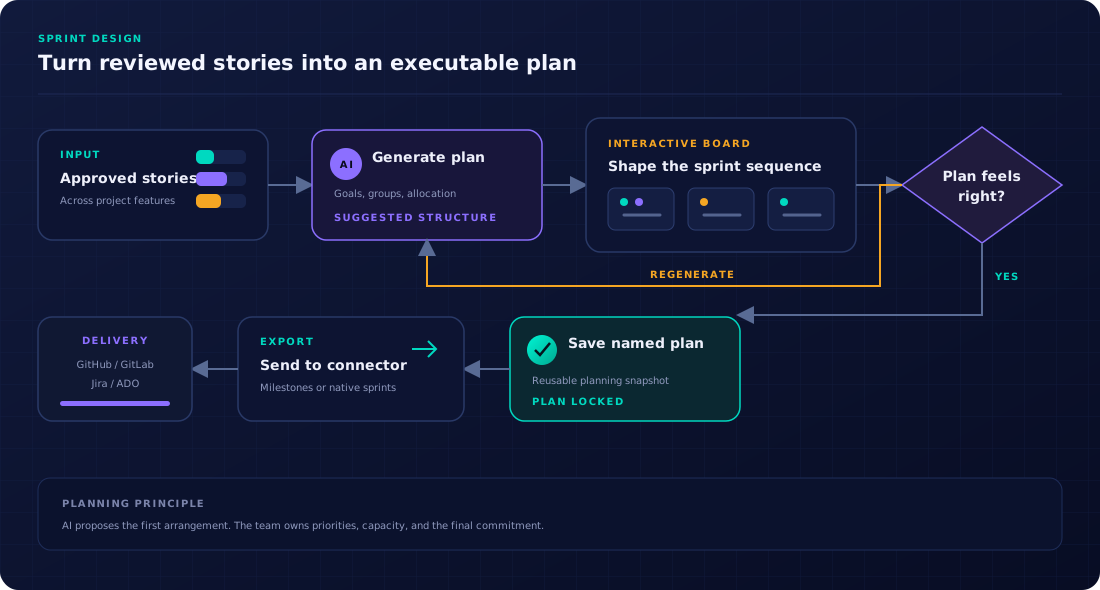
Generate an AI-suggested sprint allocation from your approved stories, edit the plan interactively with drag-and-drop, set sprint capacities, track velocity, save named plans, and export directly to your connector.
Prerequisites
Sprint Planning works with stories that have been approved or modified during the review workflow. Stories that are still pending, rejected, or already included in a previously exported plan do not appear in the planning board. The page header shows how many eligible stories are available before you generate a plan.
Generating a sprint plan
-
1
Navigate to Sprint Planning
Click Sprint Planning in the sidebar. The configuration panel on the left lets you set the number of sprints and the target number of stories per sprint before generating.
-
2
Configure and generate
Set your desired sprint count and stories-per-sprint, then click Generate Plan. The AI analyses the approved stories and distributes them across numbered sprints, giving each sprint a concise goal that summarises the sprint's theme. Generation streams progressively — sprints appear as they are computed.
-
3
Edit the plan
Drag stories between sprint columns to reorder them. Edit sprint goals inline by clicking directly on the goal text. Add or remove entire sprints using the controls at the top of each sprint column. All changes are local until you explicitly save the plan.
-
4
Set sprint capacities
Each sprint column shows a capacity bar. Enter the sprint capacity (in story points, hours, or whichever unit matches your project's estimation method) directly on the sprint card. If velocity data is available from a connected tool, use Auto-fill from velocity to populate all sprint capacities at once based on your team's historical average.
-
5
Save the plan
Click Save Plan and give it a descriptive name (e.g. "Q3 Release — v2.4"). Saved plans appear in the plan selector at the top of the page.
-
6
Export to your tool
Select a connector and click Export. Each sprint is created as a milestone or sprint in the external system, with all stories assigned to it. The plan becomes read-only after export to preserve the historical record.
Estimation methodology
Your project's estimation methodology is set during the project setup wizard and can be changed in Project Settings. Supported scales:
- Fibonacci — classic 1, 2, 3, 5, 8, 13, 21.
- Custom story points — your own numeric scale.
- T-shirt sizes — XS, S, M, L, XL, XXL.
- Hours — actual hour estimates.
- None — no estimation.
The estimation scale is used consistently across Sprint Planning capacity bars, story cards, and analytics dashboards. Labels adapt to your chosen methodology — "Story Points", "T-Shirt Size", or "Hours" appear contextually.
Estimation calibration
Storymate includes an Estimation Calibration Engine that improves the accuracy of AI-generated estimates over time. The engine:
- Tracks actual effort data from completed stories (imported via connectors).
- Compares AI estimates against actuals and adjusts future prompts.
- Reports calibration accuracy in the Analytics dashboard — showing which estimation ranges tend to be over or under.
No manual tuning is required — the calibration runs automatically in the background. You can view calibration history under Settings → Estimation.
Velocity tracking
If your connected ticketing tool supports velocity data (Jira and Azure DevOps can report historical sprint results), the Sprint Planning page shows a Velocity panel. The panel displays a chart of committed versus completed story points across recent sprints and calculates your team's rolling average velocity. This average is used when you click Auto-fill from velocity to populate sprint capacities.
Saved plans
You can save multiple plans for the same project — useful for comparing different sprint strategies, presenting options to stakeholders, or keeping a historical record. The plan selector at the top of the Sprint Planning page lists all saved plans with their sprint count, story count, and creation date.
Saved plans that have been exported to an external tool become read-only and display an Exported badge. You can always create a new plan from scratch or from a fresh AI generation to replace an exported plan.
Connector support for sprint export
Not all connectors support sprint export. The export dialog shows only connectors that have sprint support enabled:
| Connector | Sprint Export | Creates |
|---|---|---|
| GitHub | ✓ | Milestones + issue assignment |
| GitLab | ✓ | Milestones + issue assignment |
| Jira | ✓ | Sprints in the configured board |
| Azure DevOps | ✓ | Iterations + work item assignment |
| Confluence | — | Document pull only |
| TestRail / Xray / Zephyr Scale | — | Test management only |
Sprint planning flow